Course Evaluations
Course Evaluations at SLCC provide instructors, staff, and academic leadership with valuable feedback from students about their learning experience. This input supports reflective teaching practices, course improvement, and ongoing program development aligned with SLCC’s mission of academic excellence.
As of Summer 2025, SLCC has adopted Explorance as its official course evaluation platform, replacing the previous system, Watermark.
2025-2026 Course Evaluation Dates
| Term | Evaluation Start | Evaluation End | Faculty Results Open |
| (SLCC Academic Term) | (4 weeks before the academic calendar “Grades Available” date) | (Day before the academic calendar “Grades Available” date) | (The academic calendar “Grades Available” date) |
| Fall 2025 | November 24 | December 24 | December 25 |
| Spring 2026 | April 13 | May 13 | May 14 |
| Summer 2026 | July 21 | August 4 | August 14 |
Note: To protect students' privacy, evaluations that receive fewer than 5 responses will not be made available to instructors.
Accessing Course Evaluations
You can access Explorance in any of the following ways:
- From this link: Explorance
- From MySLCC: Search for “Course Evaluation” and click the Explorance card to access the Explorance platform.
- From Canvas: Use the “Course Evaluation” tab inside each course.
- From Email: By clicking the direct link in the automated email you’ll receive once evaluations open.
movie_creation Video - Watch our course evaluations Explorance platform and timeline tutorial.
Note: You must be logged in using your SLCC SSO username and password in order to view this video.
Note: Please disable any ad blockers when accessing course evaluations in Canvas, and ensure that cookies and cache tracking are allowed.
Accessing Archived Course Evaluations
To access reports dated prior to Summer 2025, please submit a request using the following link:
Submit request
Note: Requests may take up to 3 weeks.
Frequently Asked Questions
For any questions or technical issues related to course evaluations or Explorance, please contact the Research & Surveys team at courseevaluations@slcc.edu.
If you are experiencing a technical issue, we encourage you to include a screenshot of the error or problem to help us resolve it more quickly.
Note: Please disable any ad blockers when accessing course evaluations in Canvas, and ensure that cookies and cache tracking are allowed.
Note: Please do not contact IT or Online Learning for course evaluation-related support - our office is the most appropriate point of contact for assistance.
All instructors at SLCC automatically have an account in Explorance - no setup required. You can log in using the same credentials as your Canvas login.
There are 3 main ways to access your course evaluations:
Option 1: Access through MySLCC
-
- Go to MySLCC.
- Click on "View All Cards" in the top-right corner of the homepage.
- In the search bar, type “Course Evaluations.”
- Look for the Explorance card - it should look like this:
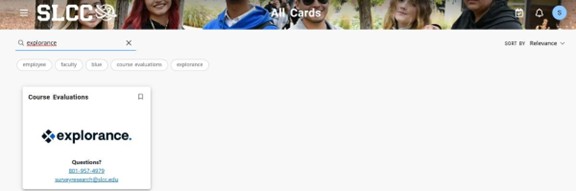
- Click the card to open your dashboard.
Tip: Click the save icon on the top-right of card to pin it to your dashboard
Option 2: Access directly or through Canvas
- Log in directly through your Canvas course.
- Use your canvas username and password to log in.
- From your dashboard, select Courses found in the left side-pane. Then select one of your published courses.
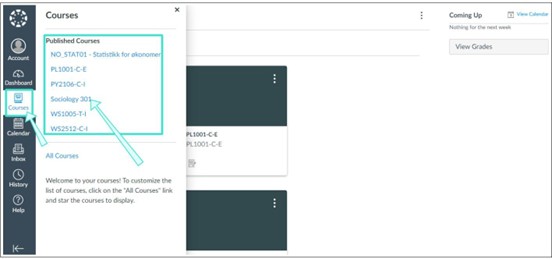
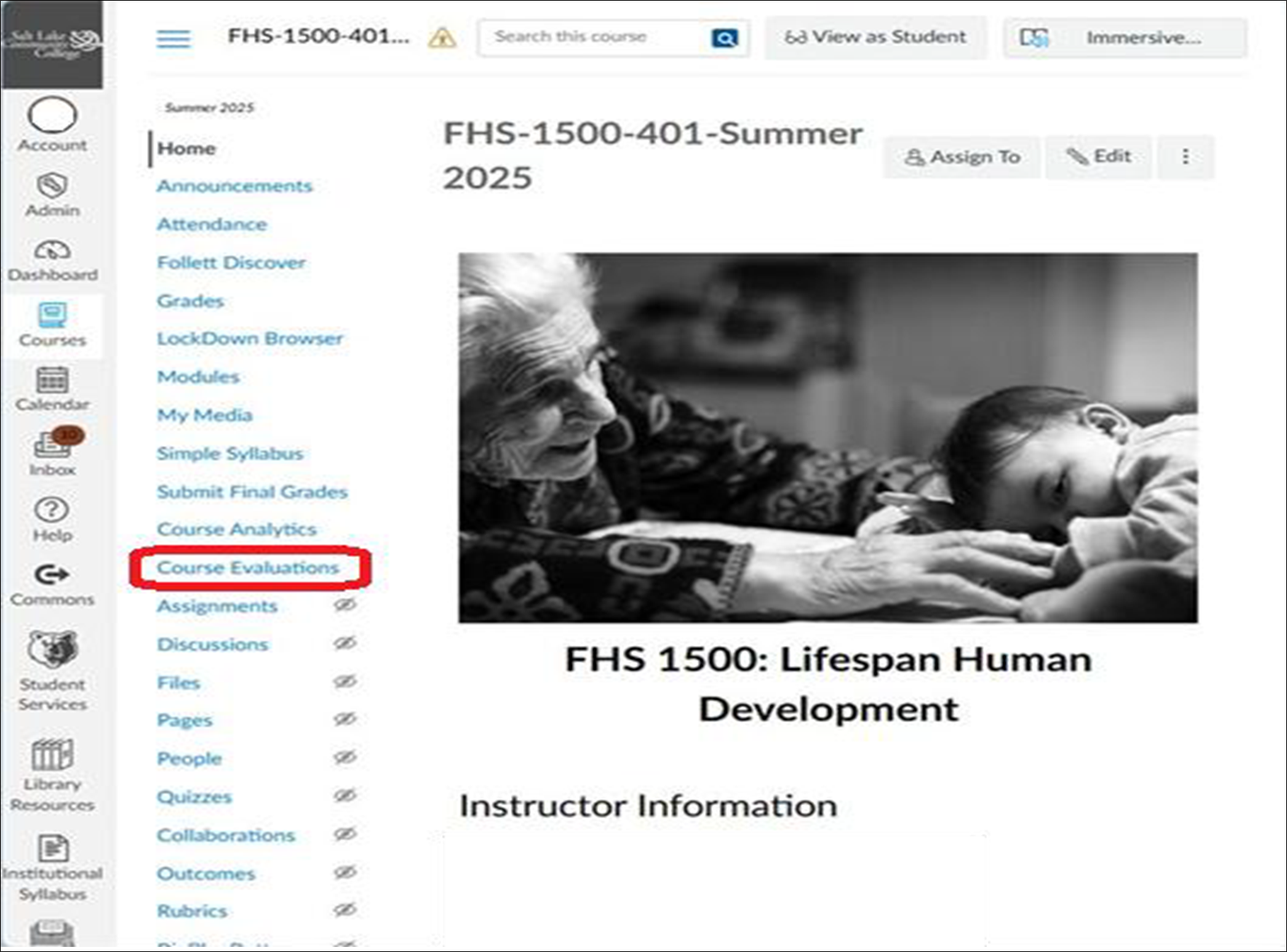
- Click "Course Evaluations" to access your evaluation for that course
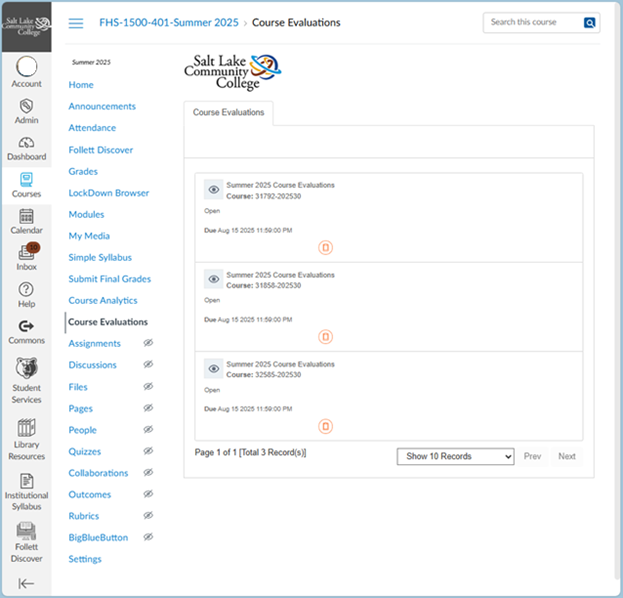
- Select an evaluation from your Current Evaluations to begin.
Option 3: Access through the email
When course evaluations open, you will receive an automated email from Explorance. This message will contain a direct link you can click to access and monitor your assigned courses.
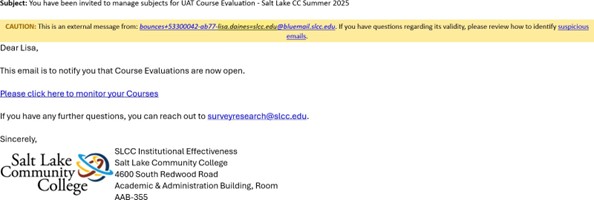
Once evaluations are open, instructors will be able to:
- Monitor their assigned courses
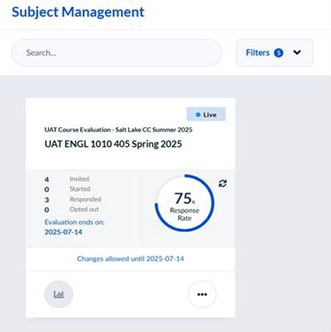
- Track response rates in real time
No additional setup is required. Explorance is connected to our institution's Single Sign-On (SSO) system.
The most important action instructors can take is to encourage students to complete their evaluations, in order to gather meaningful and representative feedback.
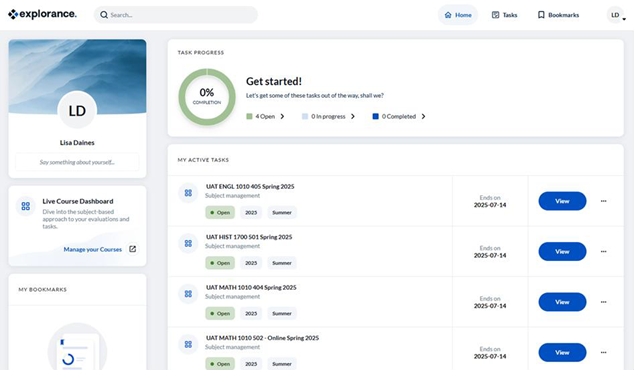
Here's what instructors will see once logged in:
- Instructor Dashboard - Active Tasks View
- Subject Management - Response Rate View
- Anonymity: All student responses are completely anonymous. Instructors receive aggregated, anonymous evaluation results only after final grades are posted, provided that 5 or more students have completed the evaluation.
- Notifications: Students are notified via email when evaluations open. They will also see reminders through the Canvas homepage widget, and a pop-up message on Canvas.
- Access Options: Students can access their evaluations in any of the following ways:
- Through Canvas, using: The Course Evaluation item in the course navigation menu, the To-Do List and notification pop-ups.
- Through the Explorance card in MySLCC
- By clicking the link in the automated email invitation sent when the evaluation period opens
Instructors will be notified via an automated email the day after course evaluations close for students. Courses with at least 5 student responses will be available for review.
Reports can be accessed in any of the following ways:
From the automated email: Click the link provided to go directly to the report.
Via MySLCC: Search for "Course Evaluation" and click the Explorance card to access your dashboard.
From Canvas: Use the "Course Evaluations" tab inside your course.
Reports include summary results and anonymous student comments. Instructors may download their report as a PDF or CSV file for further review or recordkeeping.