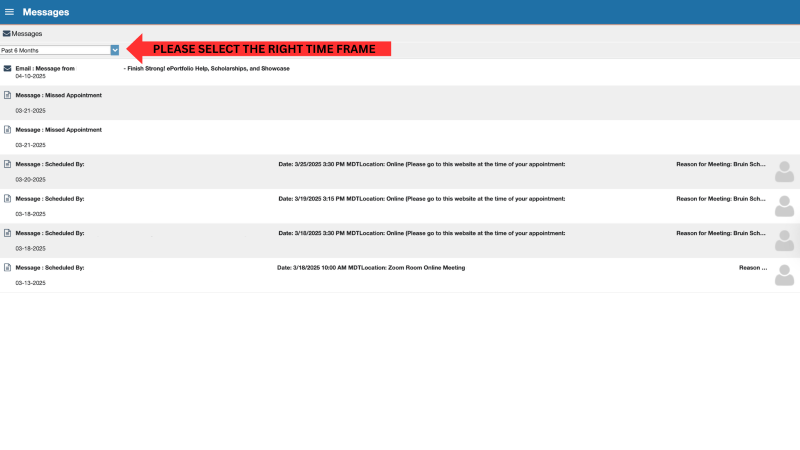
Managing MySuccess Messages
Note: Click any image to expand.
Faculty and staff will contact you through MySuccess to share updates on your academic progress and offer support opportunities. You can view these messages through Outlook, BruinMail, or directly in the MySuccess portal. To ensure you don't miss anything, check out the video tutorial or follow the step-by-step instructions with screenshots provided below.
Managing MySuccess Messages in MySuccess (Visual Instructions)
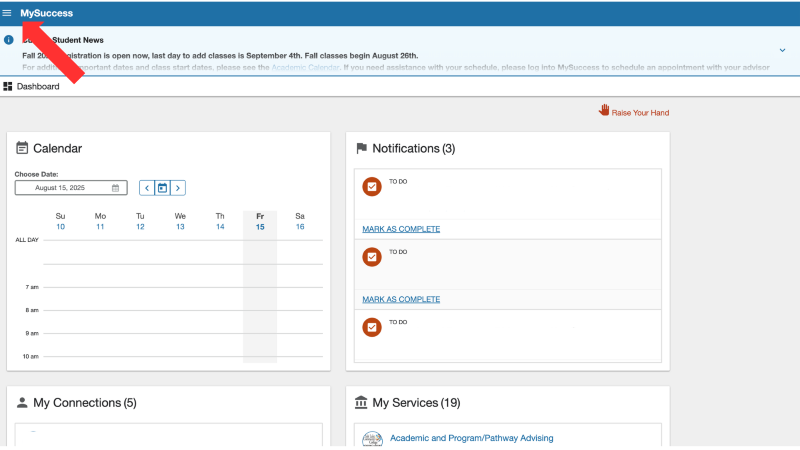
1. Click on the three lines in the left-hand corner
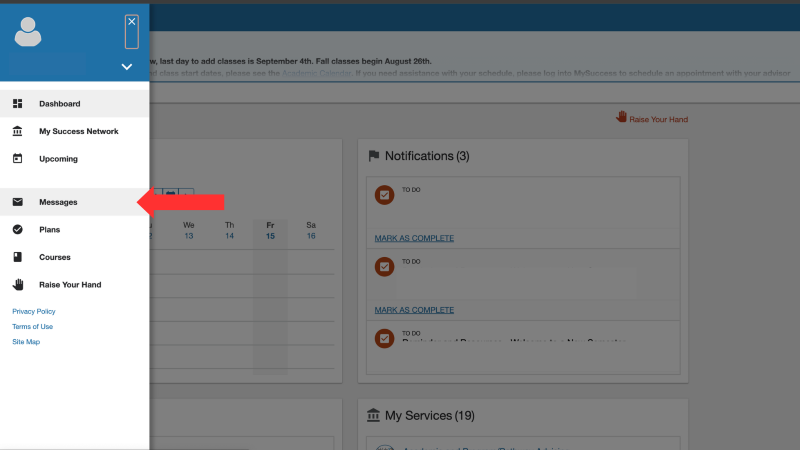
2. Click on "Messages"
3. Here you can see any messages that you have gotten from SLCC staff and faculty
Managing MySuccess Messages in Outlook (Visual Instructions)
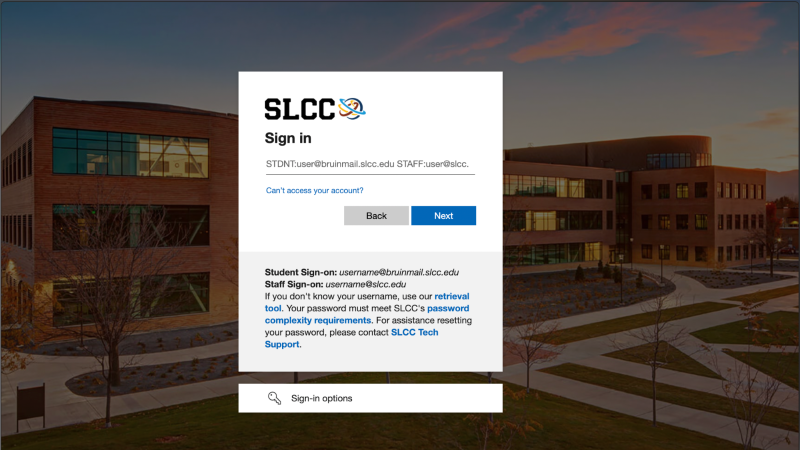
1. Log into MySLCC using your SLCC Credentials
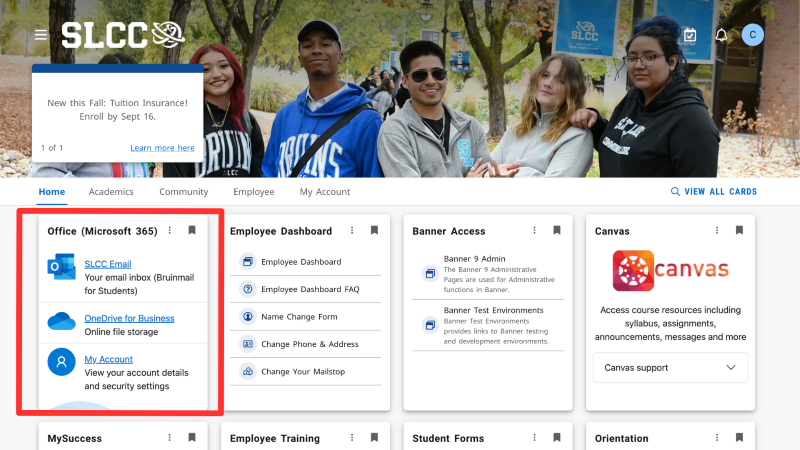
2. Look for the "Office (Microsoft 365)" Card and click "SLCC Email"
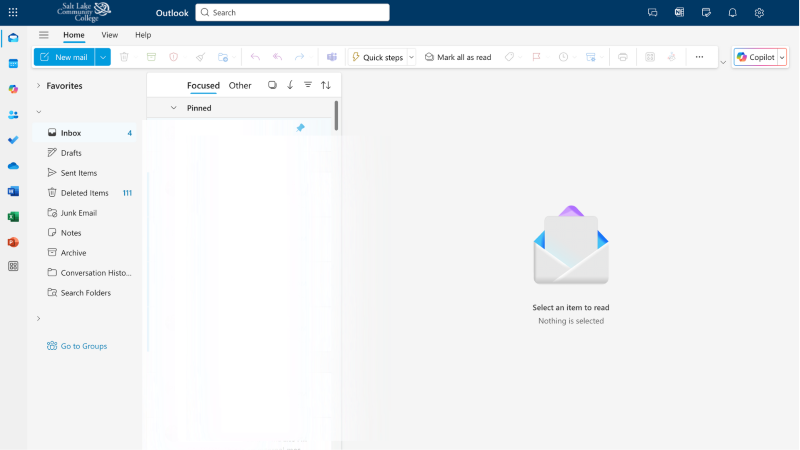
3. Here you can find any emails to your BruinMail